Confirm GIS Layer Control Integration
The Confirm Web Map interface allows users to visualize spatial data using various GIS layers. You can integrate:
- ESRI Feature Layers: Standard GIS layers from ESRI services.
- Confirm GraphQL Layers: Custom layers created using Confirm’s GraphQL queries.
This functionality enhances spatial analysis, improves decision-making, and enables dynamic data visualization directly on the map.
How to Enable Confirm GraphQL Layer Control
Enabling Tenant
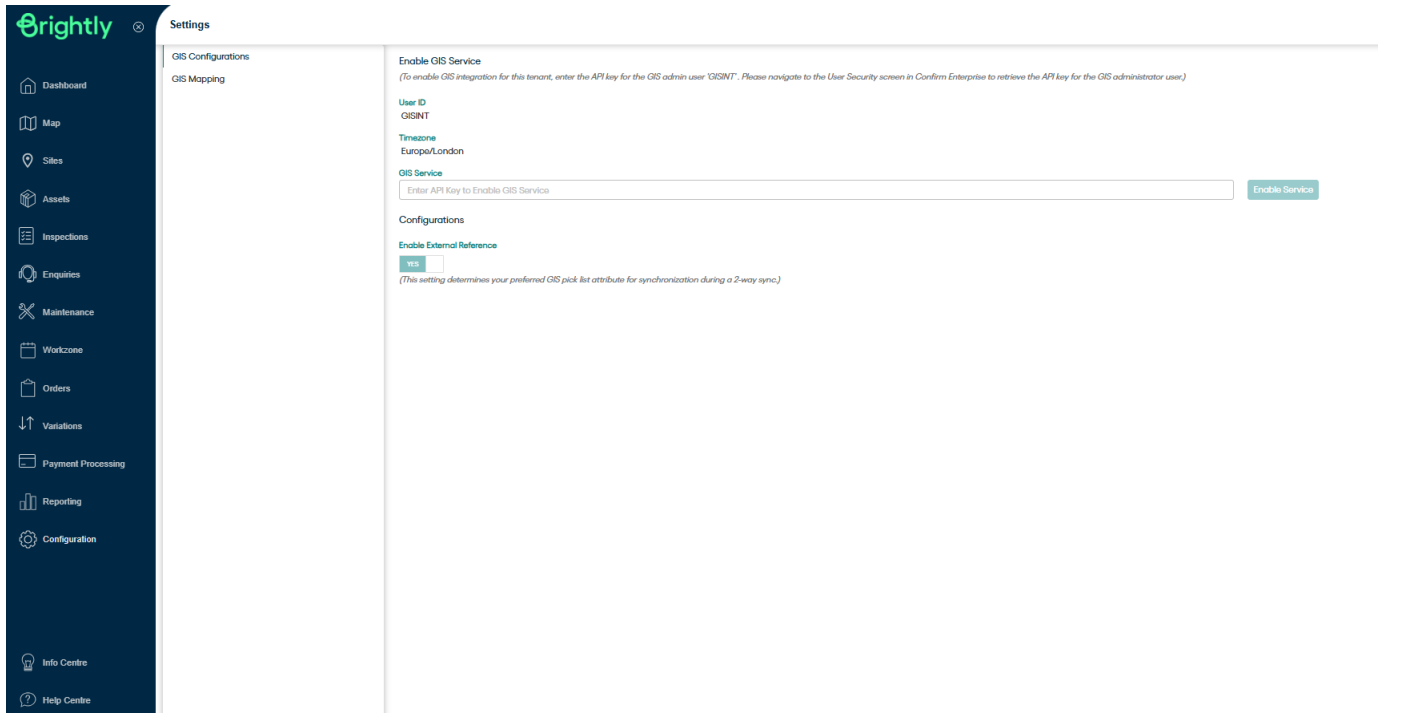
To enable GIS layer control integration for Confirm tenant, enter the API key for the GIS admin user GISINT. Please navigate to the User Security screen in Confirm Enterprise to retrieve the API key for the GIS administrator user.
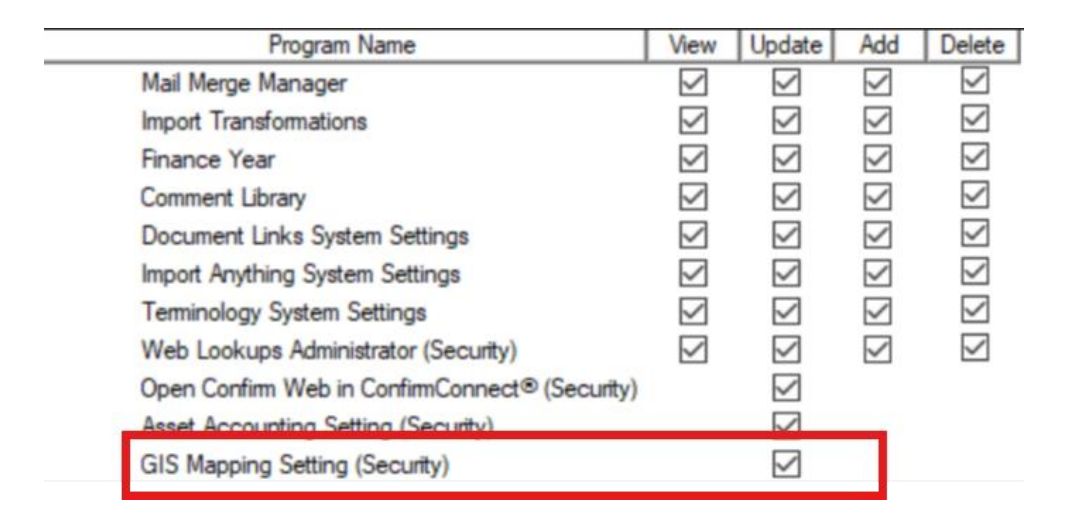
Once the tenant is enabled for GIS integration, the user needs to enable the security setting (GIS Mapping setting under Confirm User Security screen >> System Administration >> System configuration) to access the GIS mapping screen in Confirm Web interface.
How to Add GraphQL Layers in Layer Control Component
Step 1: Request Data via Reporting
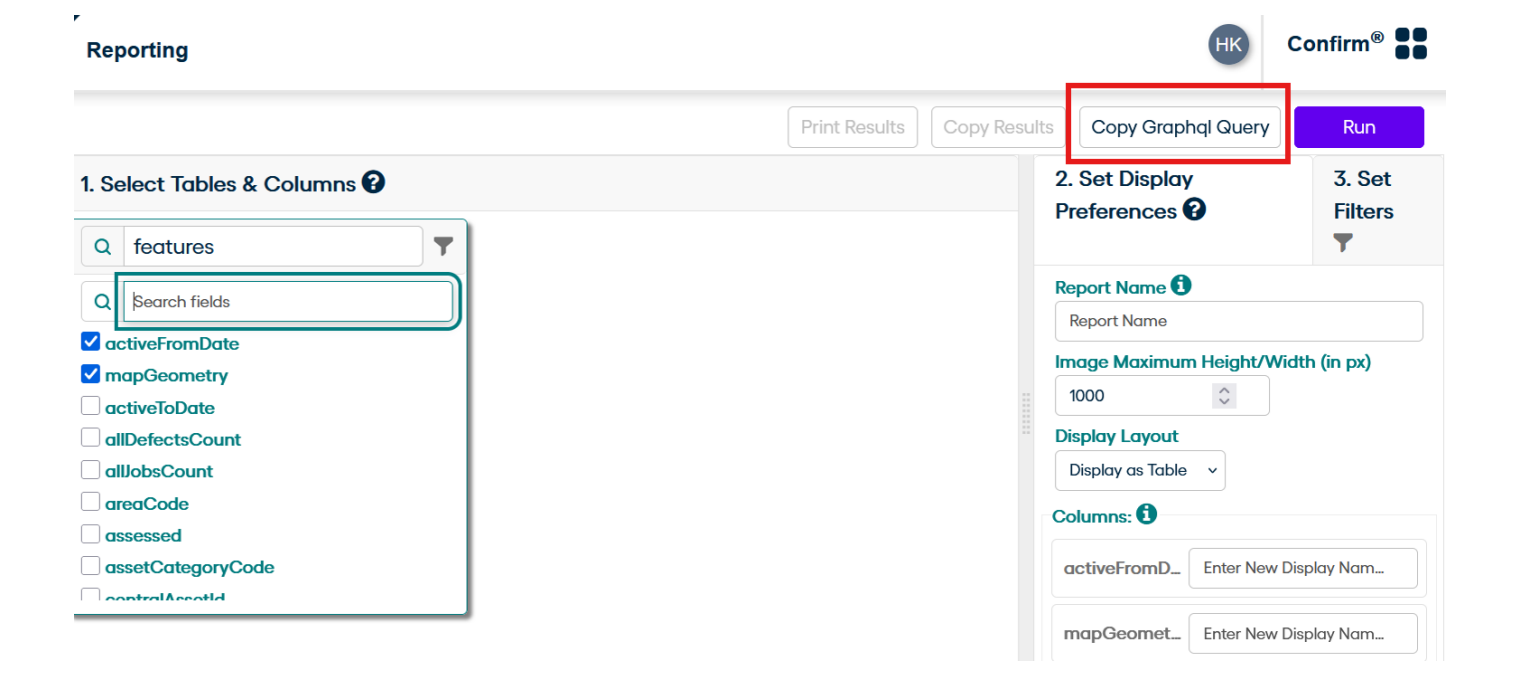
Navigate to the Reporting section in Confirm. Use the UI to request the data you need. Once the data is displayed, click the Copy GraphQL button. A message will appear: Copied to Clipboard - this confirms your query is ready to use.
Step 2: Open GIS Mapping and Add a New Connection
Go to the GIS Mapping screen and click on Add Connection. Fill in the following details:
- Connection Name: Choose a name for your connection. This is a one-time setup.
- Type: Select Confirm GraphQL from the dropdown (options include Esri and Confirm GraphQL).
- URL: Enter the Confirm API URL in this format: https://{DomainName}/confirm/web/api/
- Auth ID: Your Confirm login username.
- Auth Password: Your Confirm login password.
This functionality enhances spatial analysis, improves decision-making, and enables dynamic data visualization directly on the map.
Note: The {DomainName} should match the domain shown in your browser address bar.
Note: These credentials will be validated against the URL you provided.
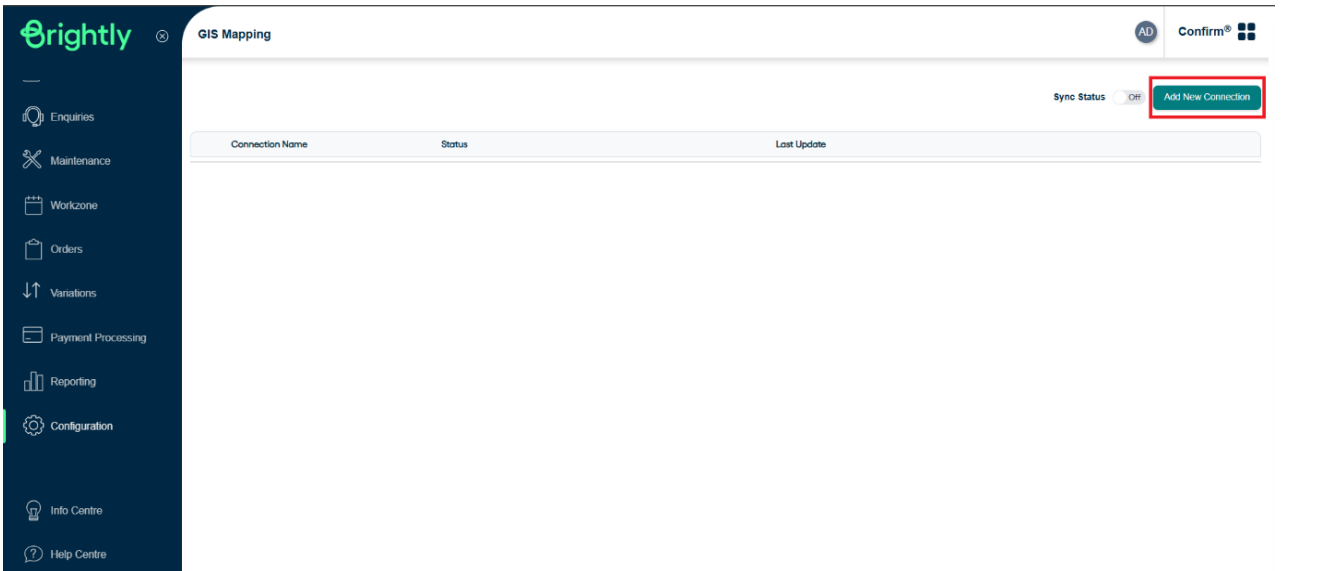
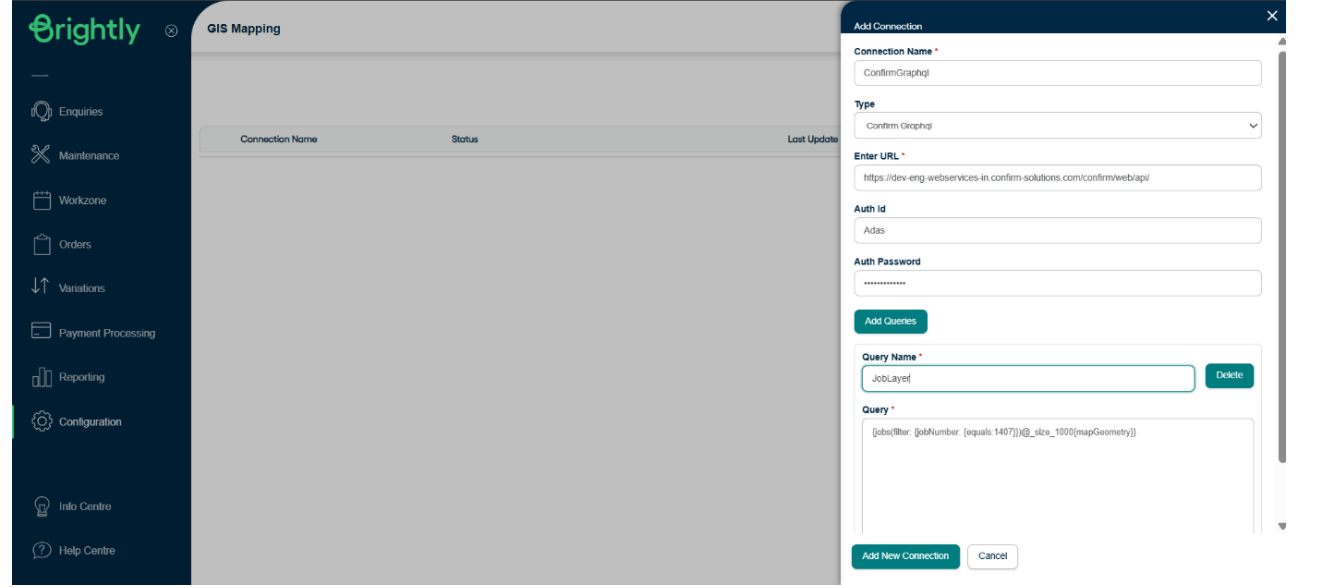
Step 3: Add GraphQL Queries
Click on Add Queries to include multiple layers under the same connection. For each query:
- Query Name: This will be the name of the layer shown to users.
- Query: Paste the GraphQL query copied earlier. Ensure the query includes the mandatory column mapGeometry.
- Use filters to improve performance and speed of data retrieval.
- Supported Entities via GraphQL query: Jobs, Enquiries, Defects, Sites, Features.
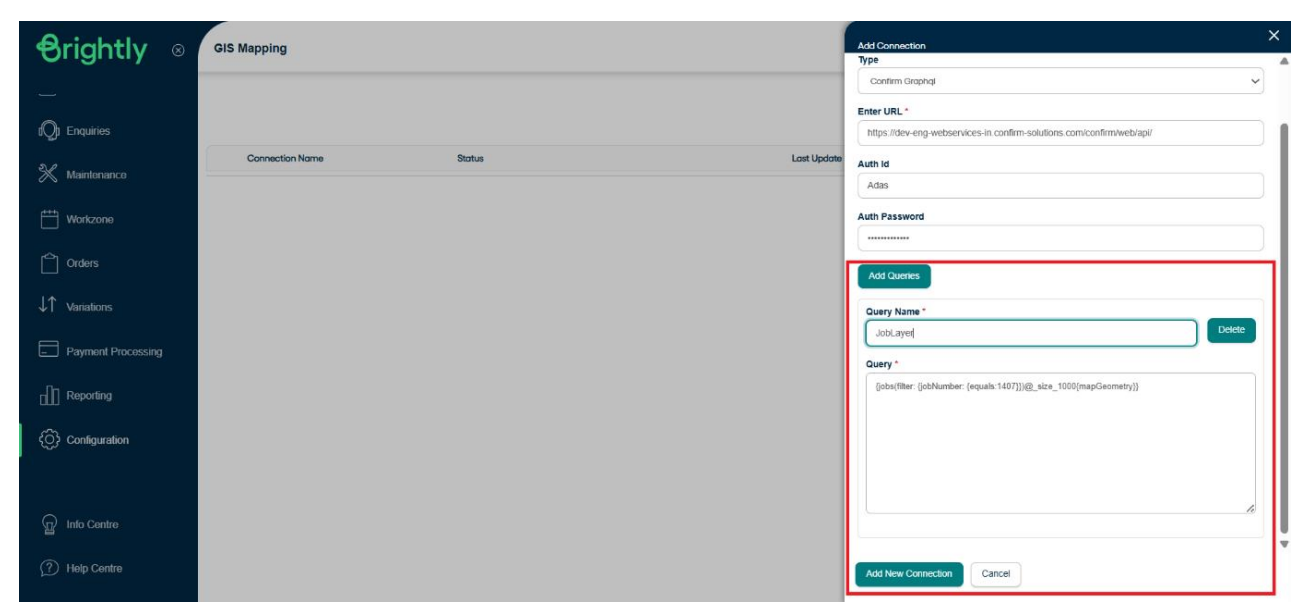
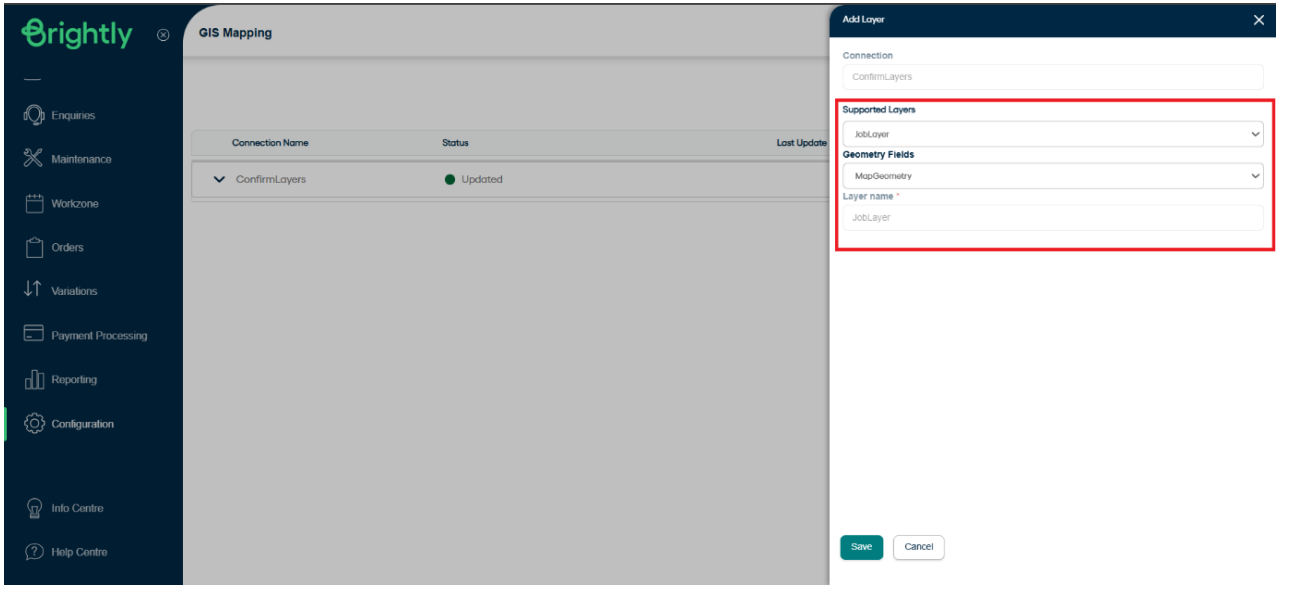
Step 4: Add Layers
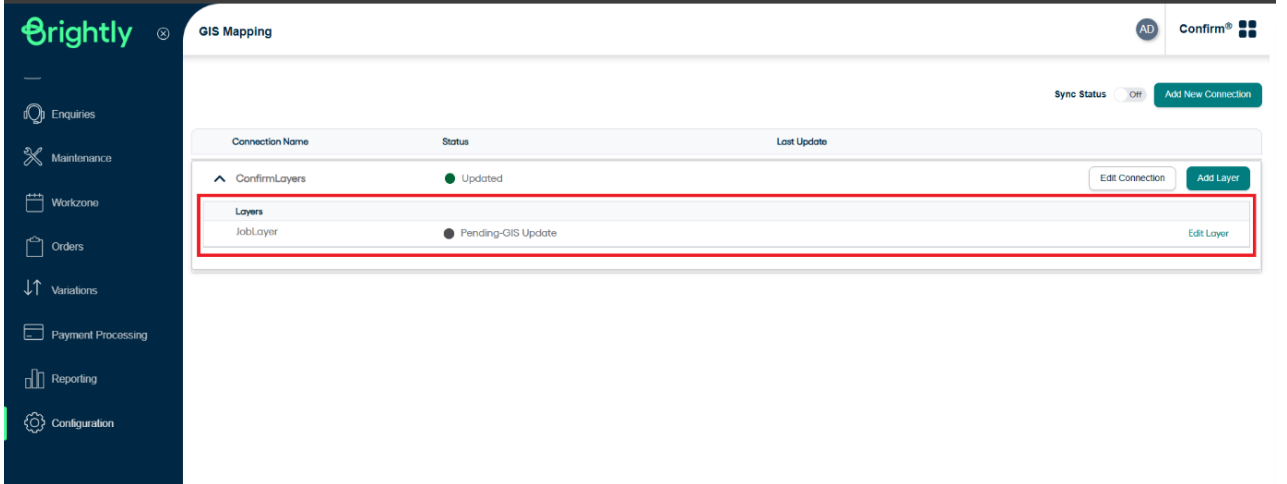
Click on Add Layer. Select from the Supported Layers (those added in the previous step).
Choose the Geometry Field - this should always be mapGeometry.
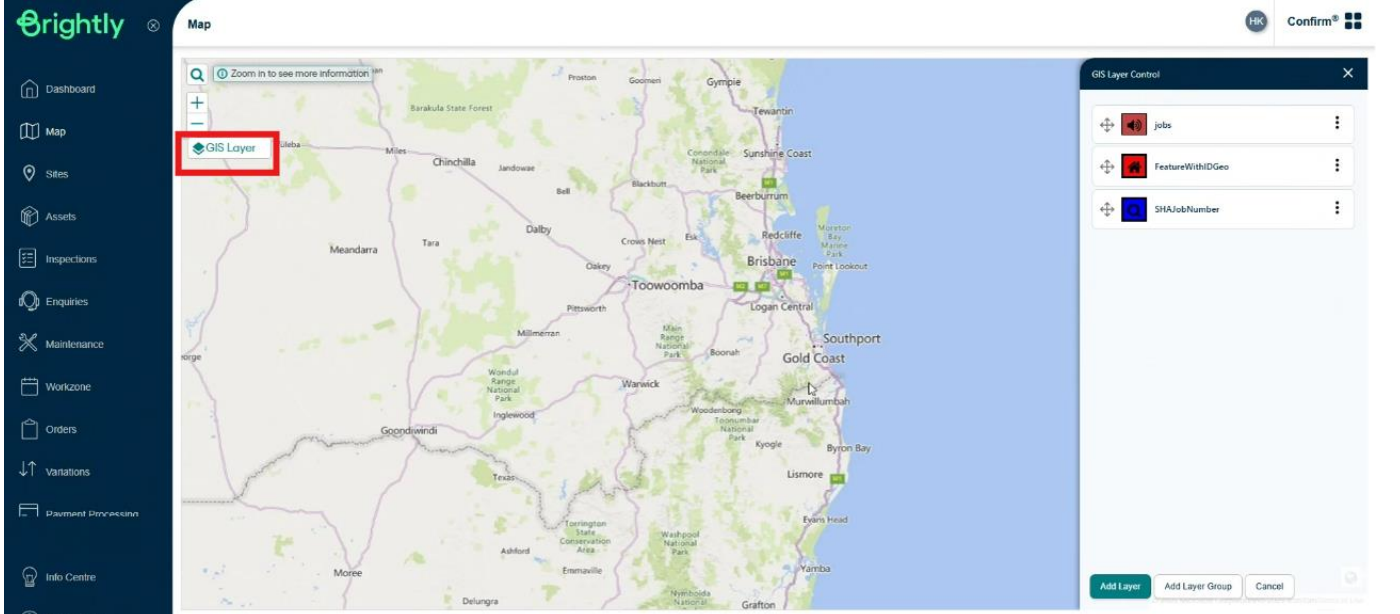
Click Save. Your configured layer will now be visible on the dashboard.
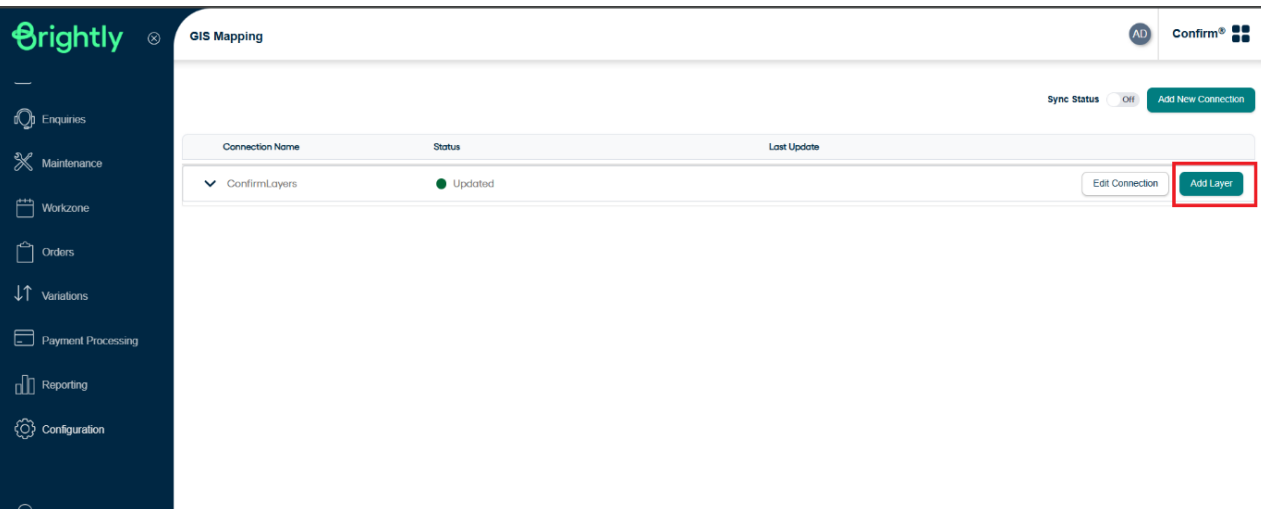
Standard Recommendations
Use Geometry Syntax Consistently: Always include the geometry column using the syntax intersects: ${geometry} This ensures accurate spatial filtering and proper rendering of map features.
Optimize Queries with Filters: Apply relevant filters within your GraphQL queries to enhance performance and reduce data load times. This is especially important when working with large datasets.
Avoid Conflicts with ESRI Feature Layers:Do not add ESRI Feature Layers that are already configured for ESRI two-way synchronization. Including these may interfere with rendering and refreshing behaviour in the Confirm Web map component
GIS Pop Up Information
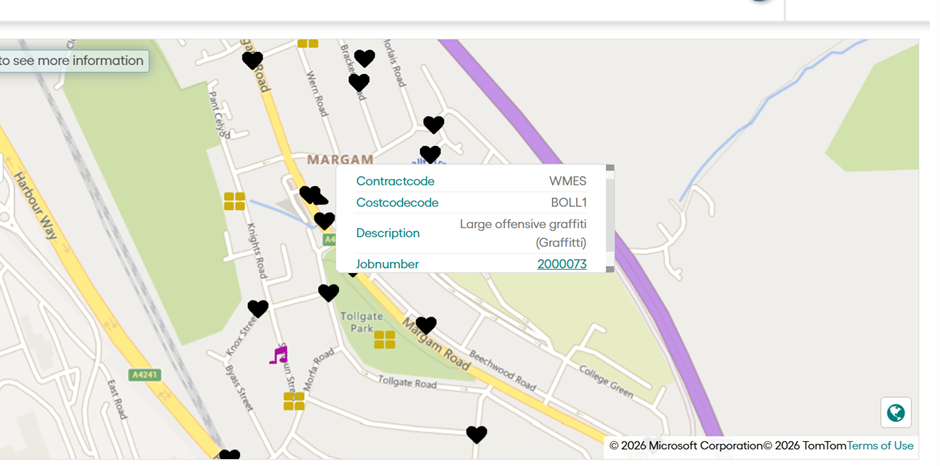
User can now see additional information in the icon popup and can navigate to the desired location if necessary.