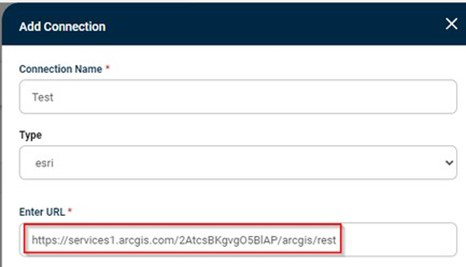
Only certain types of layers in ArcGIS are suitable for 2-way sync. This page explains how the layers need to be configured.
User must have Edit Privileges
The ArcGIS user configured for 2-way sync must have permission to edit data. For this to happen they must have a suitable ArcGIS User Type, e.g. Creator, Editor. Mobile Worker, etc. This User should not be a normal Named User in ArcGIS, but a specific user created for system-to-system communication, referred to in the Esri Product-Specific Terms of Use as a “Service Login” (relevant section is 23.b at the time of writing).
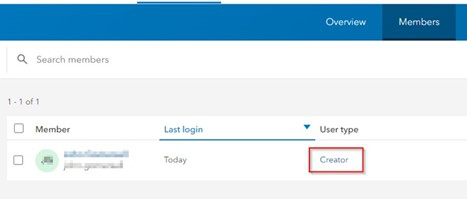
If you use custom Roles, then the user must also have permission to Edit Features.
Layer must be Editable
Any Layers to be configured for 2-way sync must be exposed as Feature Services, not just Mapping Services. The Feature Service must be configured to support Update and must support Global Ids. Global Ids are automatically added for layers that support Sync. The service must also record when each Feature was last updated so that we can just fetch changes. This is enabled with the "Keep track of who edited the data"option.
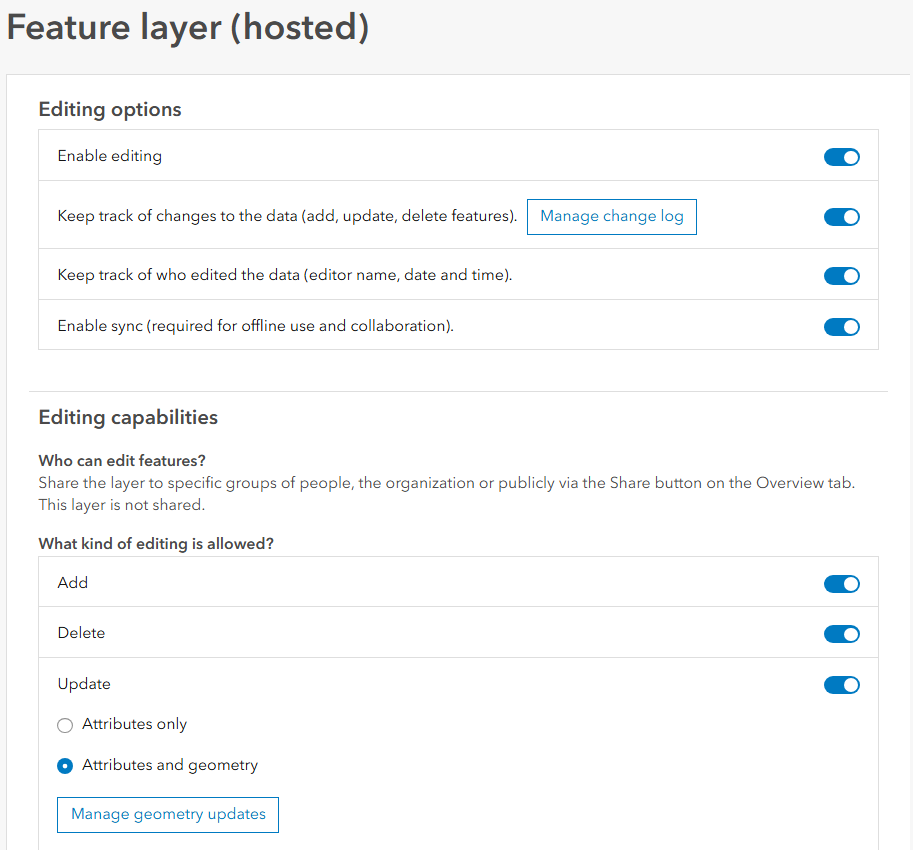
Ensure that any existing Feature Service is not shared with the public or other unauthorized users before allowing updates. If necessary, a Feature View Layer can be created for users that do not need edit capabilities.
For Non- Versioned Database. Setting should include:
- editFieldsInfo.editDateField should have a value
- SupportsApplyEditsWithGlobalIds to be true
For Versioned Database with Traditional (Branching) versioning strategy. Setting should include:
- editFieldsInfo.editDateField is present
- isDataVersioned is true
- isDataBranchVersioned is false
These settings are visible in the Feature layer's metadata.
User must have access to the Feature Service
If the Feature Service is owned by the Service Login, then we will automatically have sufficient access. If the Feature Service is owned by a different user, our Service Login will need to be granted access to the Feature Service using the ArcGIS Sharing tools. Please take care to ensure that this editable Feature Service is not inadvertently shared with the public our unauthorized users in your organization.
URL for configuration
When you go to set up the connection for 2-way sync you will need to supply a URL that we can use to connect to ArcGIS. This can be obtained by scrolling to the bottom of the Overview page for the Layer and copying the URL to the clipboard:
When you go to set up the connection for 2-way sync you will need to supply a URL that we can use to connect to ArcGIS. This can be obtained by scrolling to the bottom of the Overview page for the Layer and copying the URL to the clipboard:
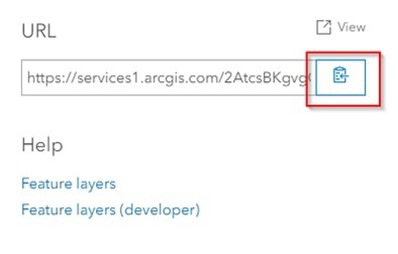
The URL might look something like this:
https://services1.arcgis.com/2AtcsBKgvgO5BlAP/arcgis/rest/services/Grit_Bins/FeatureServer
When entering the URL for the Connection in the two-way sync screen, enter everything up to /arcgis/rest, e.g.