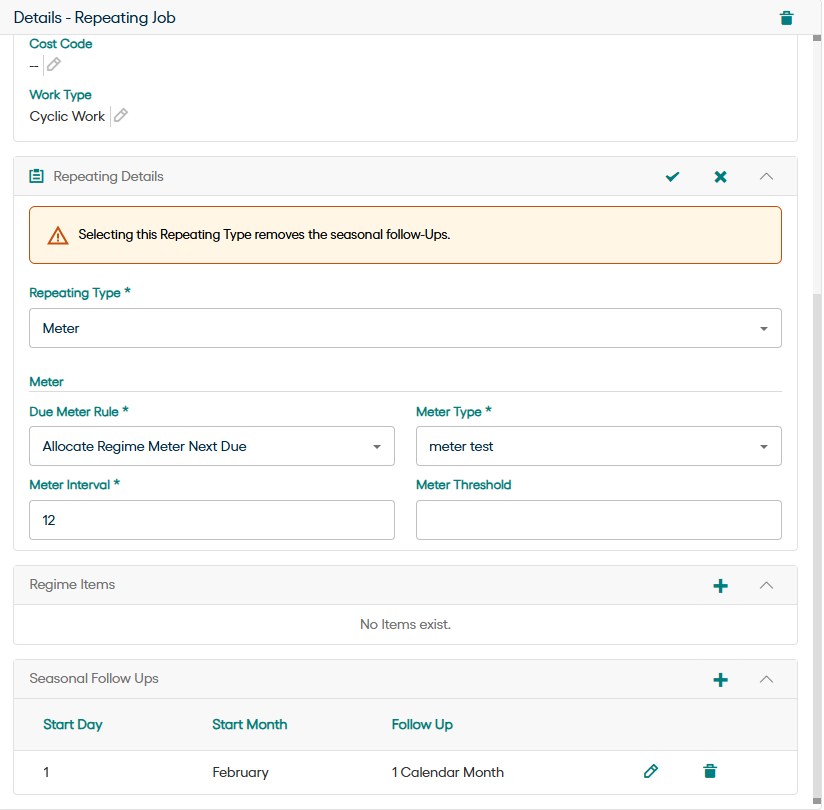
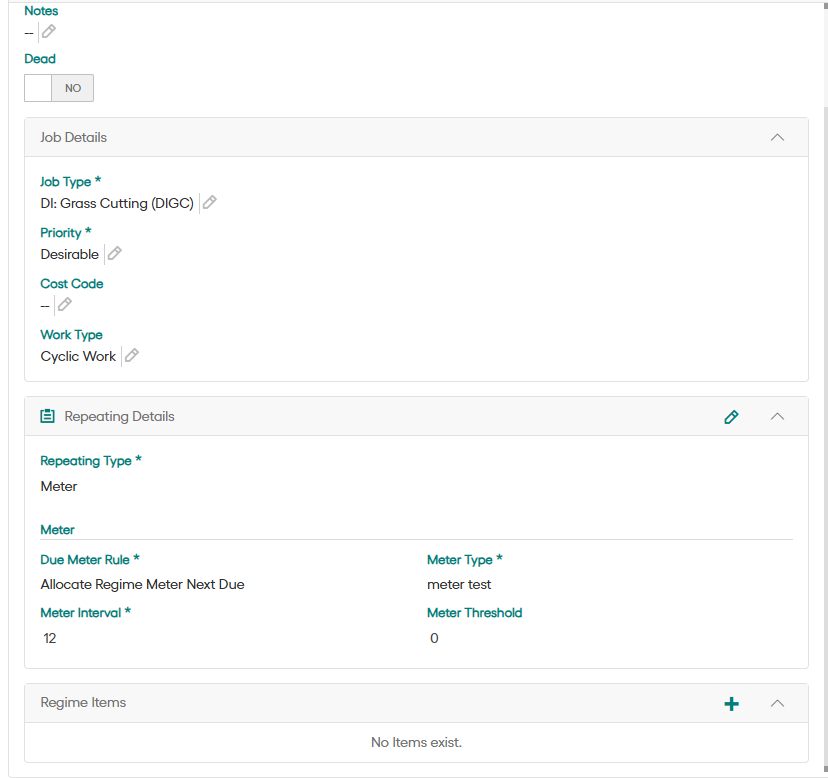
The Maintenance Regime allows the viewing and creation of new Repeating Job Maintenance Regimes.
For Cyclic or Routine Maintenance Regimes, please use the Maintenance Regime screen in the Confirm desktop client.
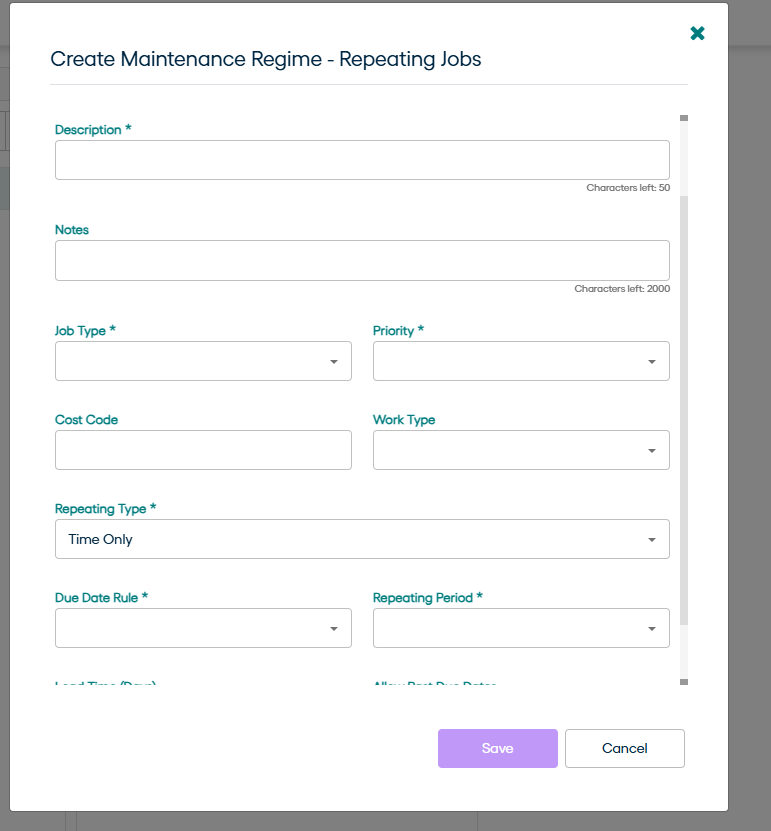
To Add a new Regime click the plus Icon which will launch a popup window displaying all the
required fields to create a new Regime. 
Allow Past Due Dates
Select this option to allow new Jobs to be created with a due date set in the past.
Job Details
Enter the details for the Jobs that will be created as part of this Regime.
Due Date Rule
The next Job will be due based on the calculated date of the chosen trigger event selected from this list.
This Due Date is set when the Repeating Agent next runs after the current Job has been completed.
Repeating Period
Use the Repeating Period to determine the follow-up period between Repeating Jobs. To vary the follow-up period throughout the year, please see Seasonal Follow Ups instead.
Regime Items
Displays a list of Items (SOR) which will be added to Jobs created as part of this Regime
To add SOR Items:
Click on the + to display the Regime Item form
Item: - find an SOR item, start typing to filter the items.
Seasonal Follow Ups
Seasonal Follow Ups can be added to change the period between Repeating Jobs, allowing different follow ups throughout the year.
Seasonal Follow Ups apply from their Start Day/Month until superseded by the next Seasonal
Follow Up. This means that the last Seasonal Follow up entered in the list will continue to
operate until the date of the first Seasonal Follow Up in the list is reached again.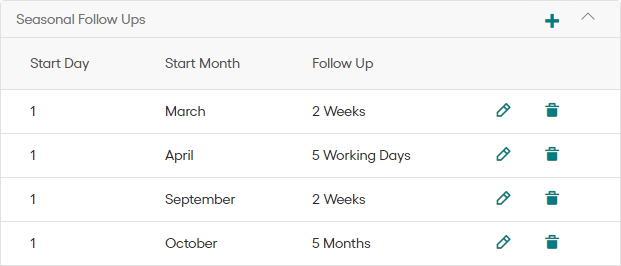
In the illustrated example, the task is carried out every 2 weeks from March to April, every week from April to September, fortnightly again during September, and then not again for 5 months, which cycles us back to March for the following year.
Repeating Type Selection
The repeating type defines the nature of the maintenance regime.
Time: - Schedule jobs based on repeating period.
Meter: - Schedule jobs based on asset readings/usage.
Time or Meter: - Jobs can be triggered by either time or usage.
Time-Based Regimes
Lead Time:
Set how many days ahead to create the job.
For example, a job due in 30 days, but with a Lead Time of 5, will be created 5 days before it's due.
Lead time should be less than repeating period.
Lead time accepts positive numeric value.
Lead time is disabled when repeating period is less than 2 days.
Meter-Based Regimes
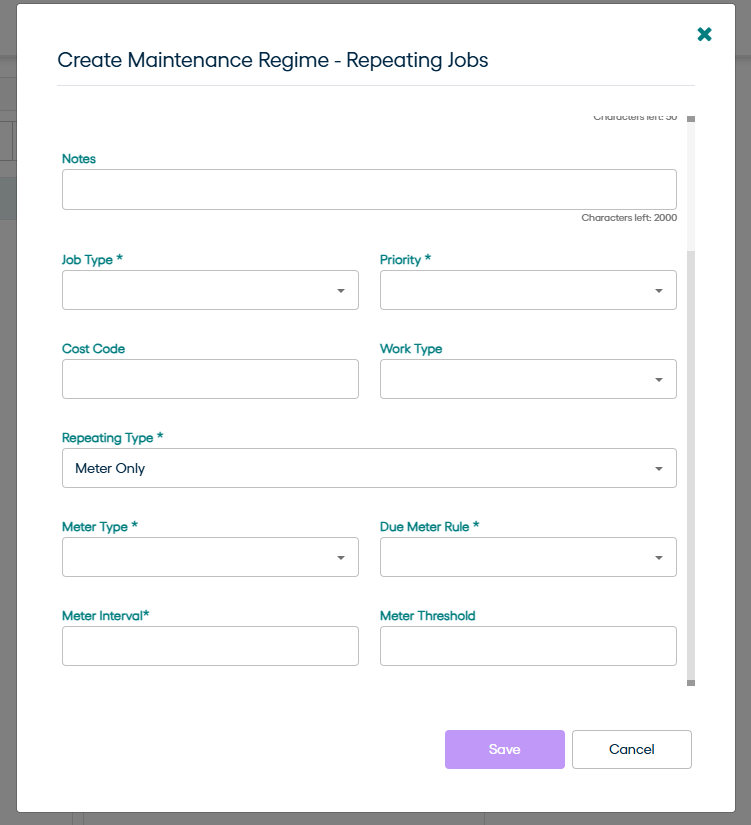
Configure with these fields:
Meter Type
Select the relevant numeric observation type.
If you don't see the right type, contact your system admin—Meter Types are created in the Observation Type screen.
Meter Interval
Represents meter’s usage interval.
It accepts only positive numeric values greater than 0.
Meter Threshold
Sets how much before reaching interval the job is created.
Meter threshold must be less than Meter interval.
Meter threshold must be a positive numeric value greater than or equal to 0.
Due Meter Rule
Choose how the next job's due meter is calculated:
Allocated Regime Meter Next Due
Lower of the Meter Next Due or Last Service Meter
Higher of the Meter Next Due or Last Service Meter
Time or Meter Regimes
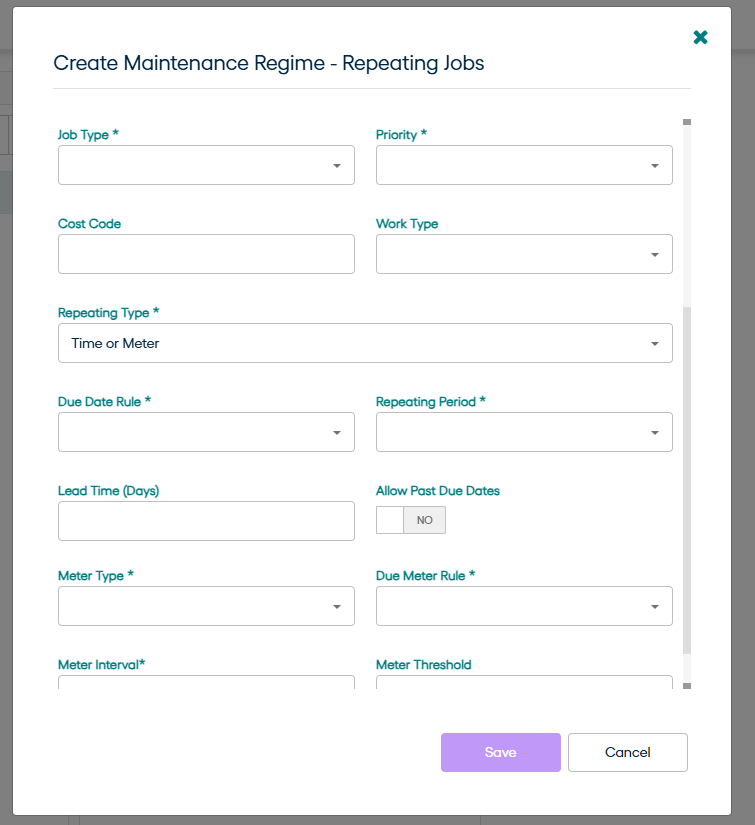
Select "Time or Meter" to configure both sets of rules.
Fill in all required fields for Time and Meter.
Jobs will be created when either the time or meter threshold is reached.
Editing a Regime
To update a regime, click Edit on the regime card.
All fields for your selected repeating type will display.